Knowledge Center
A Gerber file for each section of your electronic circuit design is what you need if you want to create a PCB.
This Gold Phoenix PCB Knowledge Center article teaches how to create the files you need for a 2-layer board using Eagle. After you have completed this tutorial you will have all the necessary files needed to send to most PCB manufacturers.
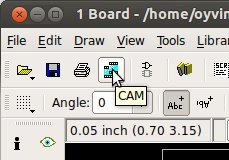
In Eagle, open Board view. Click the “CAM” button or choose “File → CAM Processor”. This will open the CAM Processor tool that is used to generate the files.
Here you can define the sections you want to create files for. In most cases, you do not need to understand the details of this — using a ready-made configuration is the simplest approach.
To simplify creating Gerber files, Eagle comes with a predefined job for this. It is called gerb274x.cam.
To open it in the CAM Processor, click “File → Open → Job…”
Browse to your .../eagle/cam/ folder, and you should see a file called gerb274x.cam. Choose it and click “Open”.
You will now see five tabs in the CAM Processor. Each of these tabs will generate a Gerber file.
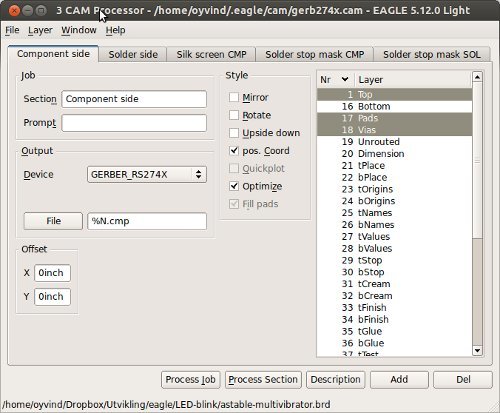
If you look at the tabs, you will see that there is no file for silk screen bottom. For simple boards, the silk screen is usually on the top layer so that the bottom is not needed. Some PCB manufacturers do not even allow bottom silk screen.
But if you need silk screen on the bottom layer as well, follow these steps:
Click “Add”
Change Section to something like “Silk Screen SOL”
Change File to “%N.pls”
Deselect all layers
Select layers 20 “Dimension”, 22 “bPlace” and 26 “bNames”
Select where you want to put the Gerber files by clicking on the “File” button and choosing a folder. Do this for all the tabs.
Then click “Process Job”. This creates your Gerber files.
Even though drilling is supported by the Gerber format, manufacturers usually want the Excellon file format for specifying drill holes. Luckily, Eagle also comes with a predefined job for creating a drill file.
Open it in the CAM Processor by clicking “File → Open → Job…”
Browse to your .../eagle/cam/ folder, and open the file named excellon.cam.
Select where to put the output file by clicking on the “File” button.
Then click “Process Job” to create your Excellon file.
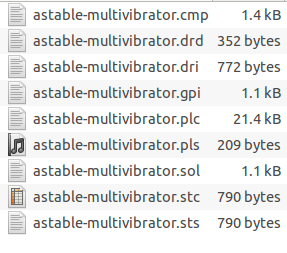
You should now have the following files:
*.cmp — Copper, component side
*.drd — Drill file
*.dri — Drill Station Info File (usually not needed)
*.gpi — Photoplotter Info File (usually not needed)
*.plc — Silk screen, component side
*.pls — Silk screen, solder side
*.sol — Copper, solder side
*.stc — Solder stop mask, component side
*.sts — Solder stop mask, solder side
After you have created each Gerber file, you should always look at them using a Gerber viewer to make sure everything is correct.
This Gerber tutorial shows one way of creating the files you need. Even though this should be OK for many PCB manufacturers, you might find that some would want the files created in a slightly different way. If so, do not worry — they will probably provide you with a Job file you can load directly into Eagle or at least have a good explanation on how to do it on their website.
Capabilities
Payment Methods


Specials Price
Carriers


Support Hobbyist
Certificate


Customer Support
Follow Us